What is available?
Disclosure: Prices, plans, and AI features mentioned in this post were accurate as of the publish date but may have changed since. Always confirm current pricing and details on the provider’s official page before purchasing.
Both big productivity suites now ship with an AI assistant built in. Microsoft Office 365 has Copilot. Google’s apps have Gemini. The question isn’t really “what is it?” — it’s “what can it actually do for me, what do I get at each price, and which one fits my task?” This guide breaks it down tier by tier, with real examples of what each one does, so you can decide which fits the work in front of you.
The short version up front: you usually shouldn’t switch suites just to get AI, because whichever one you already use has it. What follows is what you’d actually be using, plan by plan.
Microsoft Office 365 with Copilot
Free — Web + Microsoft Account
Price: $0
The free tier is a real starting point, not a teaser. With any Microsoft account you get Copilot Chat on the web, which handles the most common AI requests people have: drafting, summarizing, answering questions, and basic image creation. You paste in text or type a request, and it writes back. For spreadsheets, Excel on the web includes Analyze Data, which looks at your numbers and produces charts, trends, and plain-language answers without you building anything.
This covers a surprising amount of everyday work:
- “Write a friendly reminder email to a client whose invoice is overdue.”
- “Summarize these three paragraphs into five bullet points.”
- “Look at this expense list and chart spending by category.”
- “Make an image of a coffee cup for my newsletter header.”
You get a small monthly allowance of AI actions, which is enough for light, occasional use — the right tier to learn on before paying for anything.
Microsoft 365 Personal
Price: $9.99/month · $99.99/year
This is where Copilot moves inside the desktop apps and becomes a daily tool. Instead of pasting text into a chat window, you open a Copilot panel right in Word, Excel, PowerPoint, Outlook, and OneNote, and it works on the file in front of you. For most people, this tier covers the top reasons they wanted AI in the first place.
In Word, it drafts and reshapes documents: “Draft a one-page proposal letter for a website redesign,” or “Rewrite this section to sound more formal,” or “Summarize this 20-page report into one page.” In Excel, it handles formulas and analysis in plain English: “Write a formula to flag invoices over 30 days late,” “Build a pivot table and chart from this data,” or “Clean up and summarize this sales sheet” — and on this tier it can run Python behind the scenes for heavier number-crunching without you writing code.
In PowerPoint, it builds a starter deck from a Word document and refreshes old slides with new numbers while keeping your template. In Outlook, it catches you up fast: “Summarize this long email thread,” or “Draft a polite reply declining this meeting,” with a hands-free voice mode on mobile. You get a solid monthly pool of AI actions and 1 TB of cloud storage, for one person.
Microsoft 365 Family
Price: $12.99/month · $129.99/year
Everything described in Personal, extended to a household — up to six people, each with their own apps and storage, and up to 6 TB total. The AI capabilities are identical to Personal; this tier is about covering more people under one subscription. Good for a family or a small team where several people want the same Word, Excel, and Outlook AI help.
Microsoft 365 Premium
Price: $19.99/month · $199.99/year
Premium is built for people who use AI heavily and want it to do real research and analysis, not just drafting. It lifts the monthly AI allowance to “extensive use” and adds AI agents — tools that complete multi-step jobs on their own:
- Researcher — “Pull together a sourced report comparing our top three competitors,” and it gathers, analyzes, and cites.
- Analyst — “Analyze this quarterly data and show me the trends with charts,” handling complex data work end to end.
You also get the highest voice and vision limits. This is the tier for consultants, analysts, and power users who lean on AI every day.
Google with Gemini
Free — Personal Google Account
Price: $0
A regular Google account includes Gemini with a modest number of AI requests per day — enough to cover the most-asked tasks: drafting, summarizing, and basic spreadsheet help across Gmail, Docs, and Sheets. You can ask it to “draft a reply to this email,” “summarize this document,” or “suggest a formula to total this column.” It’s the natural place to try Google’s AI before stepping up.
Google Workspace Business Standard
Price: $14/user/month (billed annually)
This unlocks the full Gemini across Sheets, Docs, Slides, and Gmail, with nothing to install. In Sheets, the standout is “Fill with Gemini,” which fills a column by instruction — categorize a list, summarize each row, or pull live facts from the web:
- “Fill this column with each company’s headquarters city.”
- “Set up a project sheet with a packing checklist and contact list.”
- “Build a pivot table and chart comparing these regional sales tables.”
In Docs, it drafts from a description, keeps one consistent voice with “Match writing style,” and auto-fills templates with details pulled from your Gmail (like trip itineraries). In Gmail, it summarizes long threads and writes smart replies. With your permission, it also reaches across your Drive, Gmail, and Chat to turn scattered information into a finished doc or sheet.
Google Workspace — AI Add-On (Higher Usage)
Price: ~$20/user/month
For heavy users, this raises the usage limits and adds the advanced creative and research tools — more image and video generation, and expanded research with NotebookLM. The right step up if Gemini becomes central to your daily output.
Putting It to Work: Ideas for Leads and Managers
The tier lists tell you what’s available; this is where it gets interesting. If you’re running a team — or working toward it — the same assistant that drafts an email can take on the work that used to eat your week. Both Copilot and Gemini handle everything below; the only difference is which app you’re sitting in. Treat these as a menu of starting points, not limits.
The Things People Most Want to Build
Across both products, a handful of builds come up again and again. If you’re looking for where to start, start here:
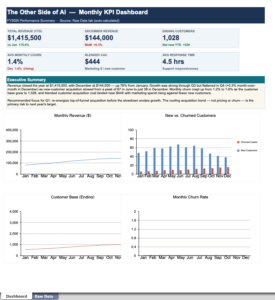
- KPI dashboards and executive reports — raw data in, polished charts and a summary out.
- Budgets and expense trackers — budget-vs-actual, variance, categorized spend.
- Project and task trackers — status, owners, deadlines, red/yellow/green health.
- Forecasts and what-if models — project next quarter, test scenarios.
- Marketing calendars and campaign trackers — content schedules and performance.
- Invoices, quotes, and ledgers — finance documents with the math built in.
- HR and roster tables — org charts, schedules, applicant ranking.
- Inventory and operations trackers — stock levels, reorder flags, throughput.
- Client and customer reports — recurring, branded, one click to refresh.
- Data cleanup — deduping, standardizing, and categorizing messy data.
Now the prompts. Each line is something you can paste in and adapt.
Money and budgets. The highest-leverage area for a manager — the AI does far more than add a column of numbers.
- “Set up a general ledger with date, account, description, debit, credit, and a running balance.”
- “Build a budget-vs-actual-vs-variance table for three departments, then explain the biggest variances.”
- “Categorize every transaction in column A into Travel, Software, Meals, or Office, then chart spend by category and month.”
- “Create an invoice with my logo, line items, 8.5% tax, and an auto-calculated total.”
- “Forecast next quarter’s spend from the last four quarters and flag where we’re trending over budget.”
- “Build a cash-flow projection for the next six months from this income and expense list.”
- “Create a quote template that calculates subtotal, discount, tax, and grand total automatically.”
- “Compare this month’s actuals to last month and tell me what moved and why.”
Reporting upward. Managers live and die by the status update, and AI turns raw activity into a numbers leadership will read.
- “Turn this messy project tracker into a one-page status summary with red/yellow/green health and the top three risks.”
- “Summarize this 30-tab workbook into the five numbers my VP cares about.”
- “Draft an executive summary of this quarter’s results for a non-financial audience.”
- “Build a KPI dashboard from this data with charts for revenue, costs, and headcount.”
- “Write the talking points I’d use to present these numbers in a 10-minute meeting.”
- “Compare our targets to actuals and highlight every metric that missed by more than 10%.”
Running the team. The coordination overhead of leading people is exactly what AI absorbs well.
- “From these meeting notes, pull out every decision and every action item with an owner.”
- “Build a project timeline with milestones from this list of tasks and dependencies.”
- “Map who’s overloaded next month based on this assignment list.”
- “Create a weekly team schedule from these availability hours and shift rules.”
- “Draft a RACI chart for this project so everyone knows who owns what.”
- “Turn this brainstorm into a prioritized backlog ranked by impact and effort.”
Decisions and analysis. A tireless analyst that does the legwork so you can make the call.
- “Compare these two vendor quotes on cost, terms, and risk, and recommend one with the trade-offs.”
- “List what could go wrong with this rollout and rank the risks by likelihood and impact.”
- “Find the trends and outliers in this sales data and show me three charts that tell the story.”
- “Run a break-even analysis on this product at three different price points.”
- “Build a simple scoring model to rank these ten options against my criteria.”
- “Spot every duplicate and inconsistent entry in this list and clean it up.”
Marketing and operations. The day-to-day building blocks of running a function.
- “Create a 12-week content calendar with channels, owners, and publish dates.”
- “Track these campaigns by clicks, conversions, and cost-per-lead, and rank them by ROI.”
- “Build an inventory tracker that flags any item below its reorder point.”
- “Set up a simple CRM sheet to log leads, status, and next follow-up date.”
- “Make a customer feedback log that tags each comment by theme and sentiment.”
People and hiring. The writing-heavy parts of managing people get a strong first draft.
- “Write a job description for a junior data analyst based on these responsibilities.”
- “Generate ten interview questions that test for problem-solving, not memorization.”
- “Draft an onboarding checklist for a new team member’s first two weeks.”
- “Build a skills matrix for my team across these five competencies.”
- “Rank these applicants by their test scores and years of experience.”
- “Draft a constructive, specific performance-review summary from these notes.”
The pattern across all of these: the AI builds the structure, runs the math, and produces the first draft — your job shifts to judgment, the part that actually makes you a manager. Two habits to keep: review any formula or number before it goes to leadership (the AI can be confidently wrong), and treat these spreadsheets as planning and analysis tools, not your official system of record for taxes or payroll.
A Quick Word If You Use These at Work
Most professionals get these apps from an employer, where the AI is your IT department’s call, not your purchase. On the Microsoft side, many business plans include a free Copilot Chat (web-grounded, with enterprise data protection — your data isn’t used to train AI), while the version that reads your actual work files is the paid Microsoft 365 Copilot add-on (about $30/user/month) that your admin assigns. Google Workspace works the same way: Gemini is switched on for your account by your admin. So the first step costs nothing — ask IT, “Do I have a Copilot or Gemini license?” And because of that data protection, the work version is the safe place to use AI on company information, far better than pasting it into a personal chatbot.
So, Which Is Best for You?
- You already use Word, Excel, and Outlook: stay with Microsoft. Personal ($99.99/year) is the value pick; go Premium if you’ll lean on the research and analysis agents daily.
- You already use Gmail and Google Sheets: stay with Google. A free account gives you a taste; Workspace Business Standard ($14/user/month) unlocks full Gemini.
- You share a household: Microsoft 365 Family ($129.99/year) covers six people.
- You’re a light user: start free on either suite, and add a free chatbot (ChatGPT, Claude, Gemini, or Grok) for the bigger asks.
- You use the apps at work: ask IT for a license before buying anything.
The honest bottom line: for everyday spreadsheet and writing help, Copilot and Gemini are closely matched. The best one is almost always the suite you’re already in — the AI is a reason to use what you have more fully.
Frequently Asked Questions
What can Copilot do in Excel? Summarize and analyze your data, write and explain formulas, build pivot tables and charts, and on paid plans run Python-powered analysis automatically, all from plain-English requests.
What can Gemini do in Google Sheets? Auto-fill columns by instruction (“Fill with Gemini”), pull live facts from the web, build whole project sheets from a sentence, and create pivot tables and charts on request.
Is Copilot free? A web-based version is, through a free Microsoft account. Full Copilot inside the desktop apps starts at $99.99/year.
Does Google Sheets have AI? Yes — Gemini. A free Google account includes daily AI help; paid Workspace plans include the full version.
Which is better, Copilot or Gemini? For everyday work they’re closely matched. The better pick is usually whichever suite you already use.
Capabilities, prices, and versions verified against Microsoft’s and Google’s official pages on June 7, 2026. Providers update features and pricing regularly — confirm current details before you buy.